Start with every house, every month
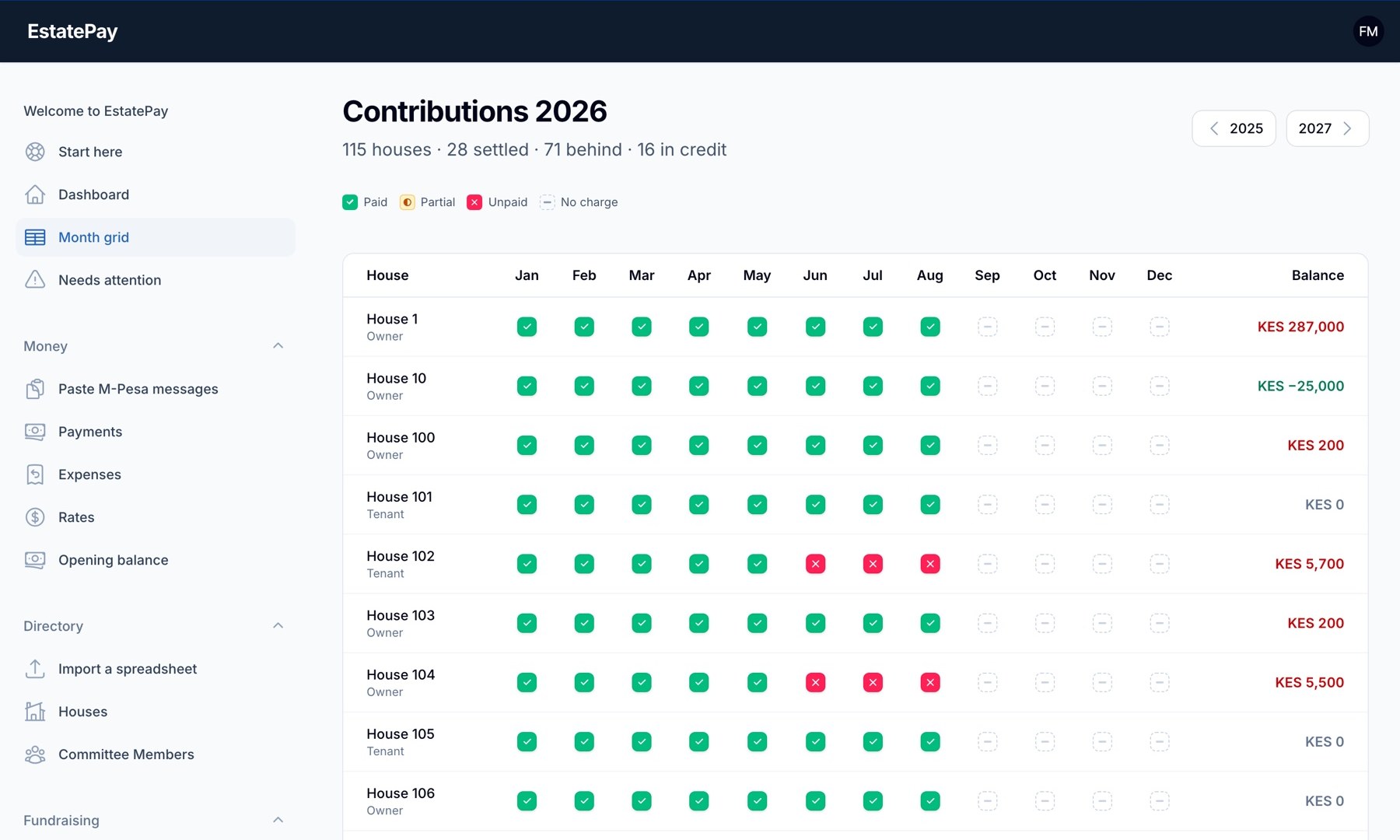
Green is settled, amber part paid, red outstanding, grey not yet due. House 10 is paid ahead; house 102 has missed since June. One screen holds 115 houses and the whole year.
Click a cell to record a payment
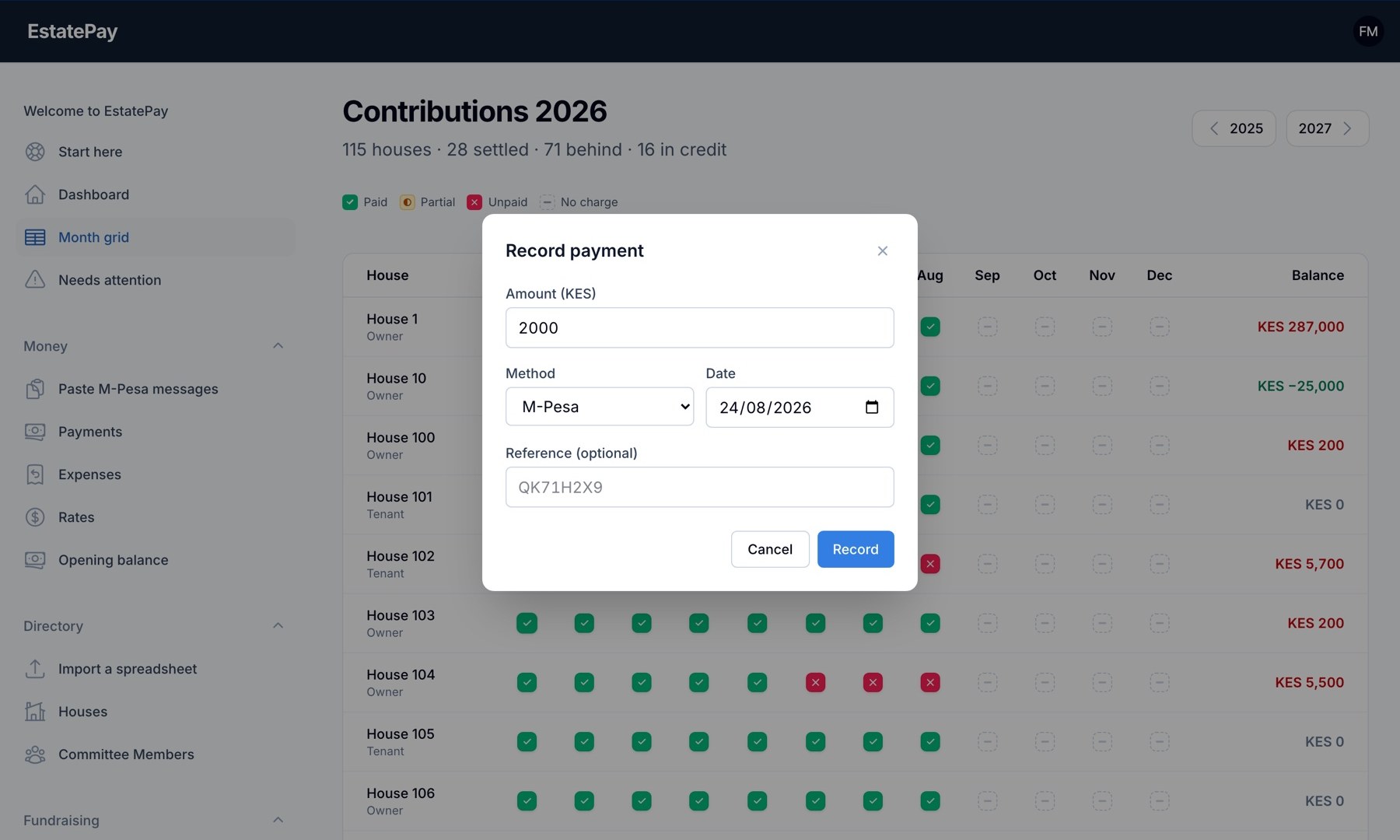
The amount arrives already filled in at that month's rate. Choose M-Pesa, cash or bank, add the confirmation code if you have one, and record it.
Bring the payments in, however residents pay
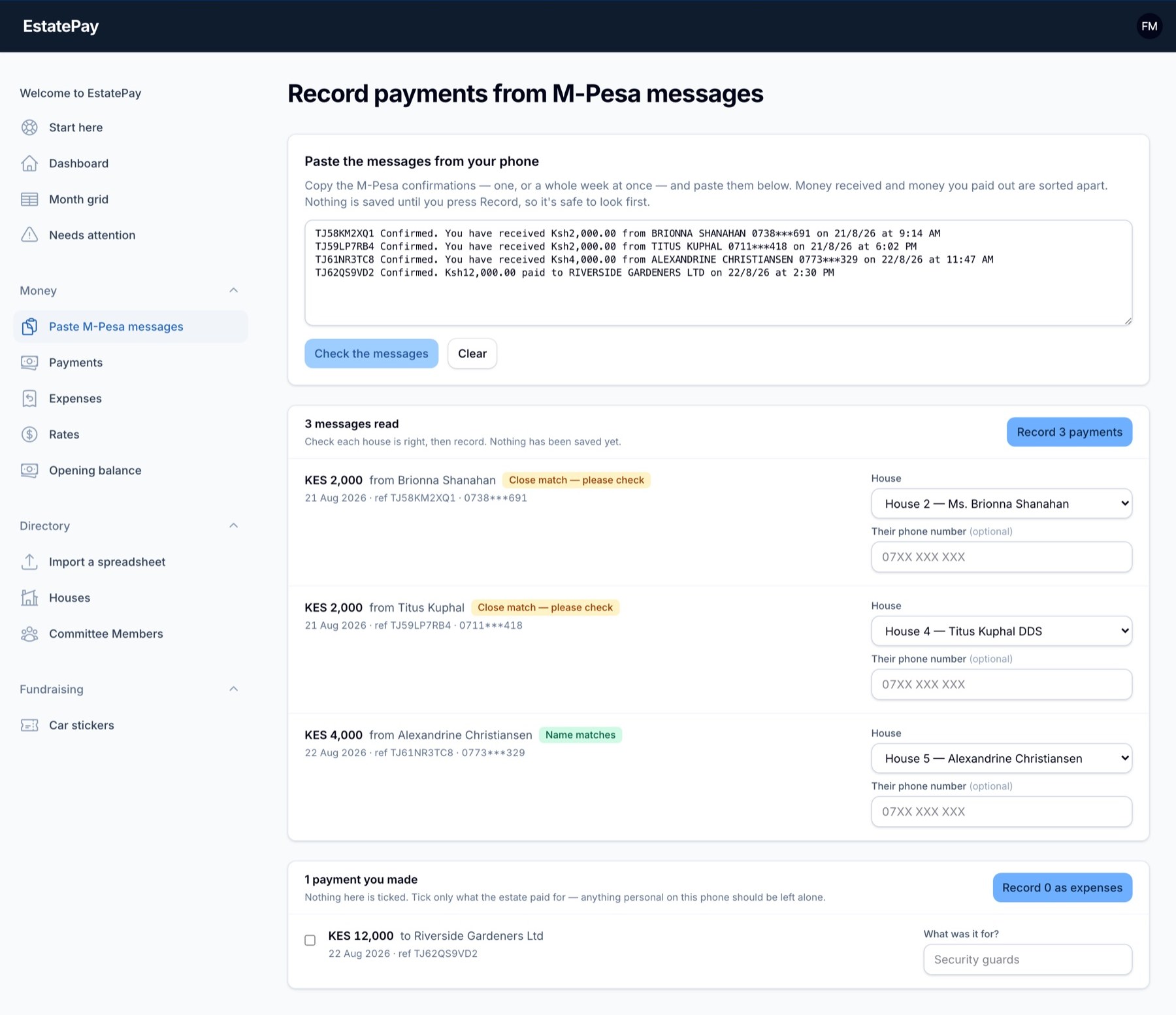
Residents pay where they always have — the treasurer’s M-Pesa, the estate’s bank account, a paybill. It all lands in one ledger. M-Pesa confirmations paste straight from your phone: EstatePay reads each code, amount, date and payer, finds the house, and saves nothing until you press Record. Bank and paybill payments are entered from the statement today — and record themselves the day your paybill is connected.
Every payment keeps its record — M-Pesa, bank or cash
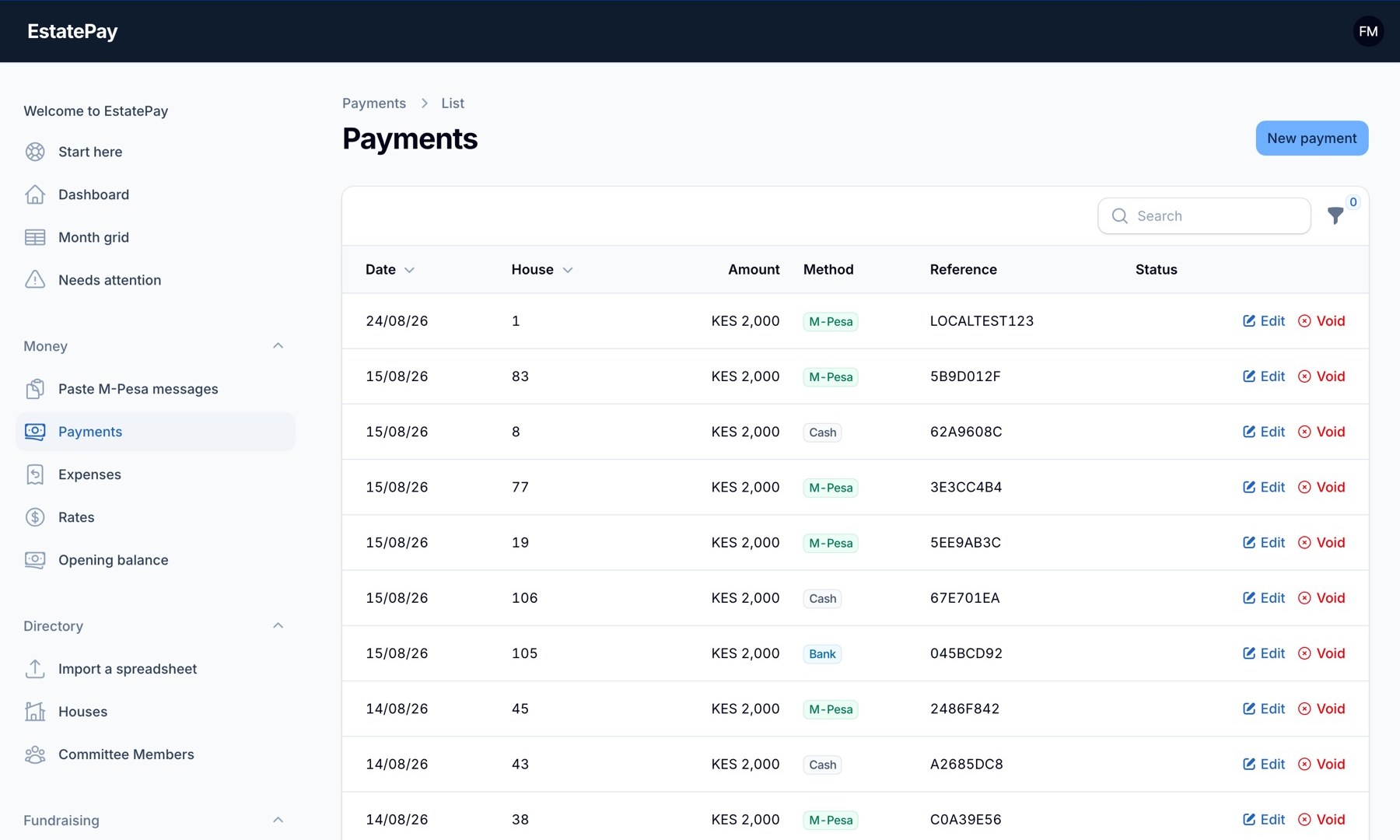
One list for every channel, with date, house, amount, method and reference on each row. A mistake is voided rather than deleted — it stays visible, with its reason.
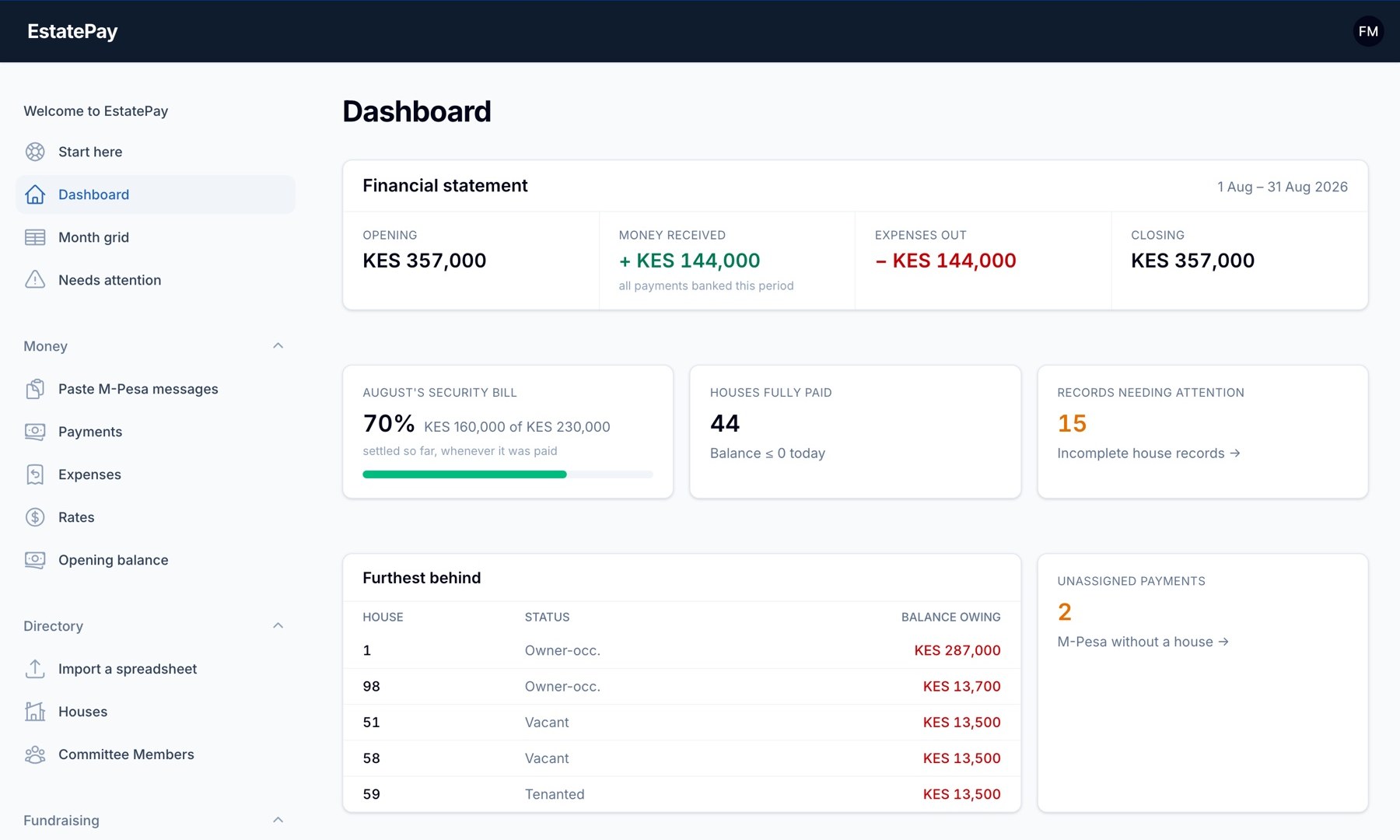
The dashboard keeps the running position
Opening balance, money in, money out, closing balance — with this month's collection rate, how many houses are square, and who is furthest behind.
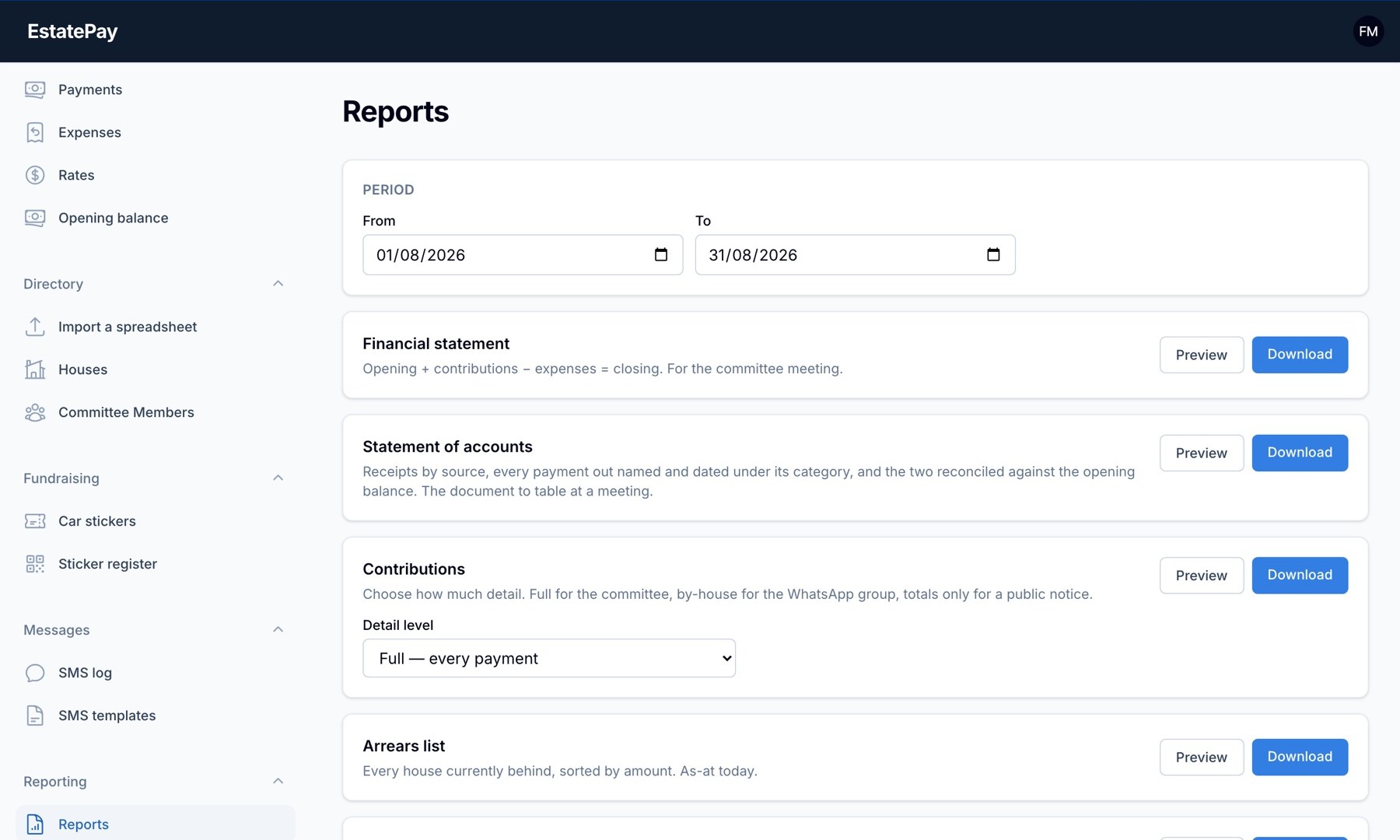
Choose how much detail to share
The full ledger for the committee, house numbers for the WhatsApp group, totals only for the notice board. The same figures, three audiences, one click apart.
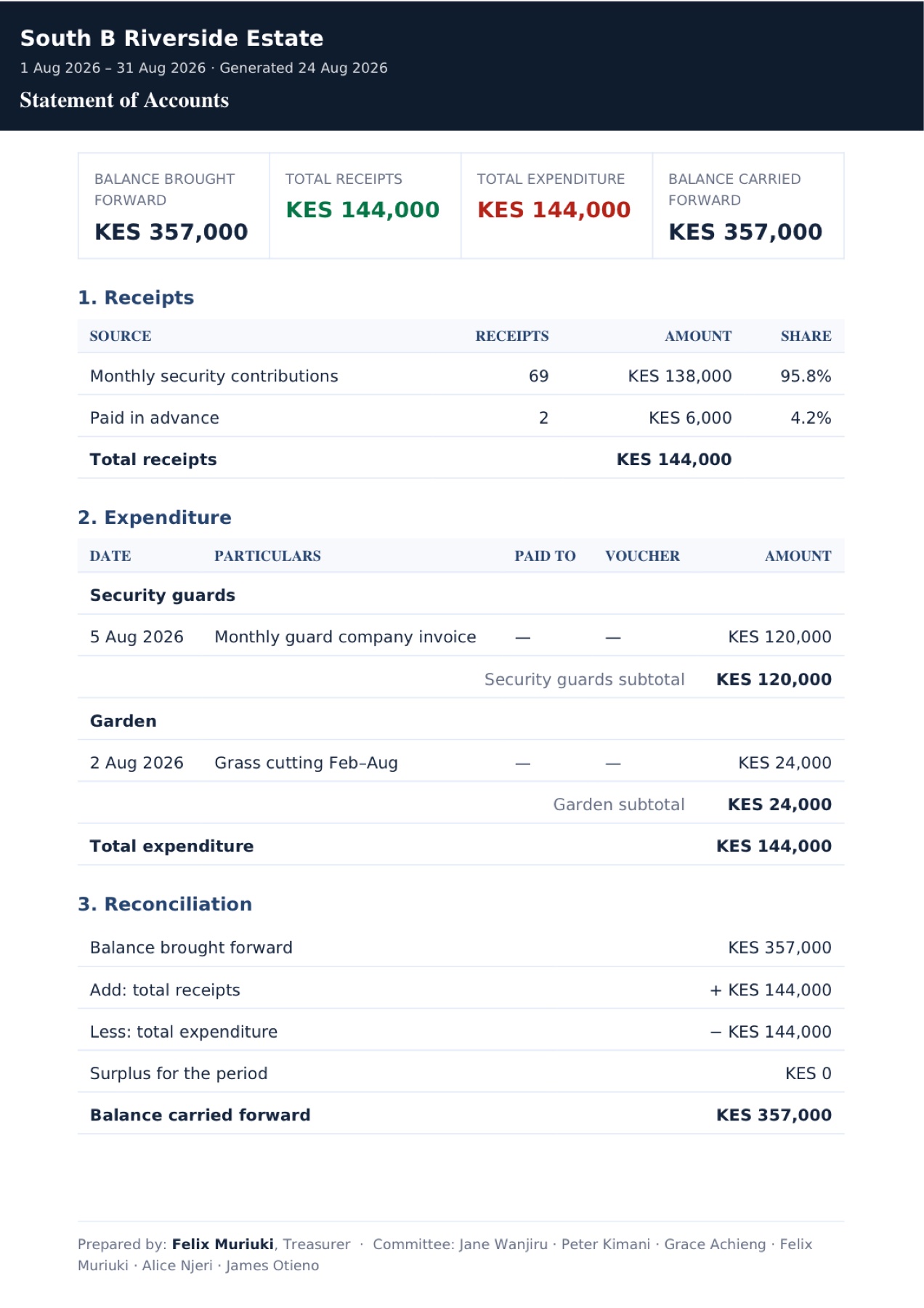
This is what the committee receives
Receipts by source, every payment out named and dated under its category, and the two reconciled against the opening balance — signed off with the treasurer and the committee named at the foot.
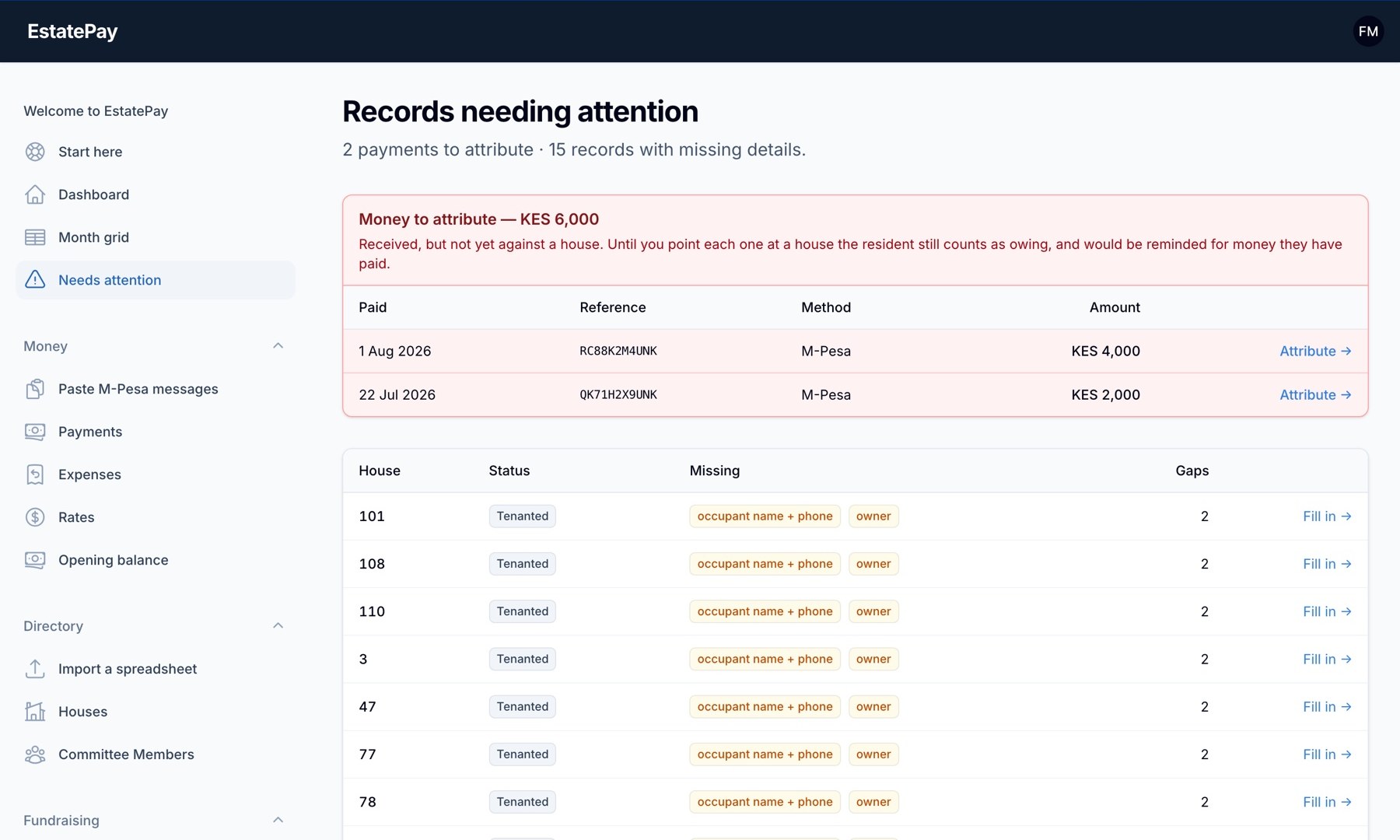
And the two lists worth checking weekly
Money that arrived without a house attached to it, and houses missing an owner or a phone number. Until a payment is pointed at a house, that resident still counts as owing.
See it with your own estate's houses in it
Setting up takes about two minutes: your name, the name of your court, and the monthly rate. You can bring your existing spreadsheet across, history and all.
Sign up today →EstatePay is invite-only while we finish building it. The figures in these screenshots come from a demonstration estate of 115 houses, not a real one.